

The results are in and it’s official: as of May 2026, carousels are one of the highest-performing types of content you can post on LinkedIn.
If you’ve spent any time on social media in the past few years, you’ll be very familiar with these fun little documents (here are some examples of carousels from my, Abi’s and Yardstick’s LinkedIn page).
They offer a fantastic opportunity to share mountains of information in a clear, engaging way – perfect for helping your clients and prospects get to grips with topics like tax, investing, and personal finance more broadly.
But they’re not the most intuitive way to create posts for LinkedIn, especially if you’re new to the platform and still finding your feet. That’s why I’ve created your ultimate guide, sharing everything you need to know to help you decide whether carousels are something you want to try and exactly how to get started.
If you’ve been wanting to get stuck into carousels but are unsure where to start, this article is for you.
Data shows that carousels can be a valuable addition to your posting strategy if used correctly
In his latest algorithm report, LinkedIn expert Richard Van Der Blom’s team shared their latest findings from analysing thousands of LinkedIn posts over the past year.
The data showed that:
- Carousels are perfect for sharing informative, educational posts in an engaging way – especially when those topics are condensed into easy-to-read formats.
- They perform well for both reach and engagement – two metrics that help you get seen and build relationships with connections and strangers alike.
- Despite being one of the top-performing post types, only 4.88% of creators on LinkedIn are using carousels. However, among the top 5% of creators, that number rises to 8.83%. This means they’re a great opportunity to stand out, as evidenced by the most successful people on LinkedIn right now!
Here are a few top tips from the report that are worth bearing in mind if you want to get the best results from your next carousel.
Make sure it adds value
This is the golden rule for all social media content, regardless of the format you’re using. Today, everyone’s news feed is chock-a-block with generic posts that don’t add much to the conversation. To stand out, make sure your carousel contains specific insights that your ideal clients will genuinely benefit from.
LinkedIn expert Richard Van Der Blom recommends including one of the following three points in your post:
- A surprising data point
- A niche-specific scenario
- A perspective only you could offer.
Keep it short and sweet
If you want to reach a wide audience of ideal clients with your carousel, short and sweet is the way to go. Recent research suggests that a maximum of 9 or 10 slides is optimum for helping readers to stick with your content and take value from it. The more people who finish swiping through your slides, the more likely LinkedIn is to show your post to a wider audience.
Stick to what you know
Carousels are great, but you’ll only get good results from them if the content of the post is relevant to your audience. So, choose a small number of content pillars (broad-ish topics that you’ll write about again and again) and stick to them each week rather than trying to talk about everything and anything.
This way, LinkedIn will show your posts to people who have indicated they are interested in that topic, helping your posts reach more ideal clients even if you aren’t connected to them yet.
Make sure the final slide contains a call to action
The final slide of your carousel should include an instruction to the reader. That might be:
- Save this post to refer back to later
- Share your thoughts in the comments below
- Share this with someone you think could benefit.
Carousels that end with a clear call to action are 4.2x more likely to convert than those that simply… end.
Remember to repurpose
The mistake lots of people make on social media is only posting content once and trying to come up with brand-new ideas every week. A carousel offers so many opportunities to repurpose that content to get maximum value from the time you’ve spent creating it.
You could turn each slide into a standalone text + image post, collate all the information into an article, or simply update the information within the slides and repost at a later date. It also works the other way – if you already have posts or articles written and complete, turn those into your carousel.
As content marketing expert Ross Simmonds explained in our webinar last year, you should spend 20% of your time creating content and 80% of your time distributing that content (most people get this the wrong way round).
Create and post your first carousel in 10 simple steps
Now that you know the “why”, let’s dig into the “how” – my step-by-step guide to creating a carousel.
To create a carousel, you need to use a programme or platform that lets you design a PDF. The Yardstick social media team usually uses Canva for this and we highly recommend it – it’s completely beginner-friendly and allows you to design some really nice graphics without needing much, if any, prior design knowledge or experience.
Step 1: Log in and head to the social media button on this screen:

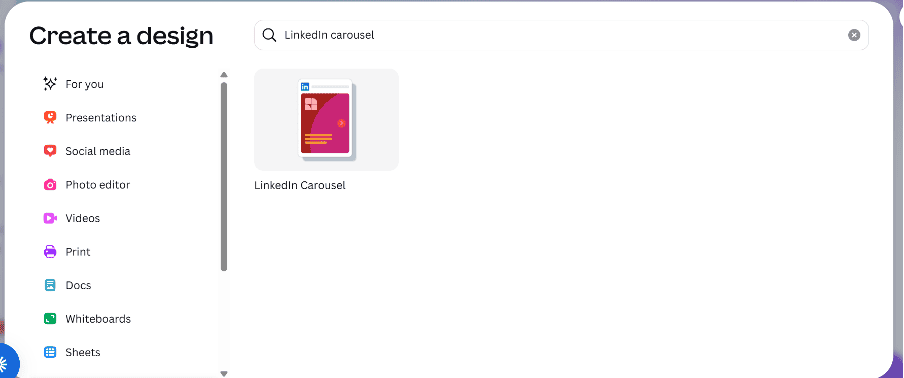
Step 2: Type “LinkedIn carousel” into the search bar and click the template option offered – this will create the PDF with the correct dimensions for this content format. If you’re creating for a different platform, simply type that one in instead.
Step 3: Now’s the fun bit: designing your carousel!
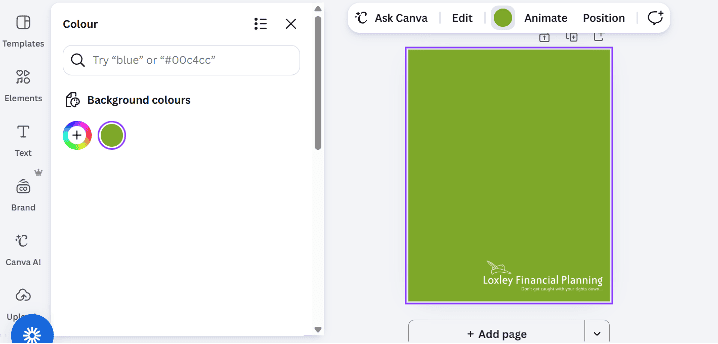
A nice, simple way to create a design you can use over and over again is to click on the first slide and choose one of your brand colours as the background, then place a white version of your logo in one corner.
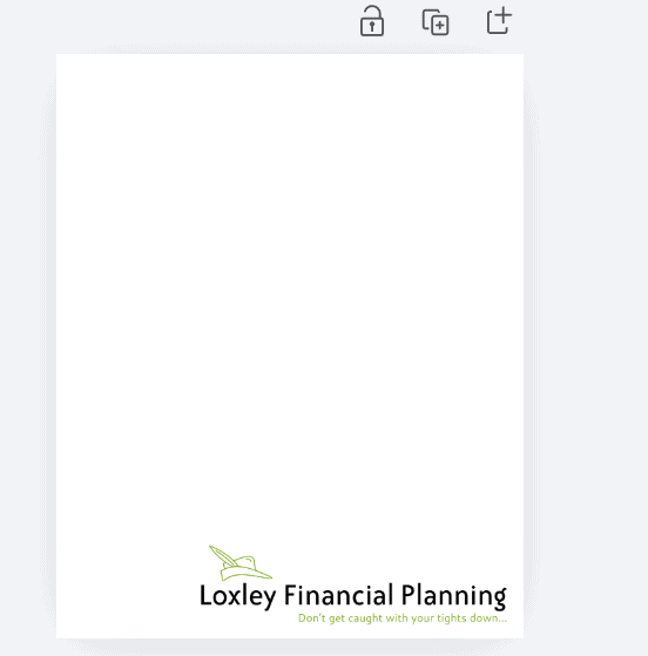
Or keep the background white and use a colour version of your logo:
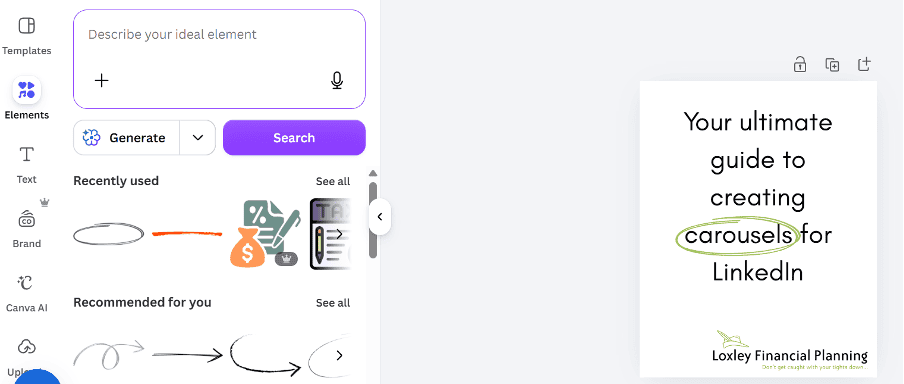
Step 4: Next, create a title page – make sure it’s clear what readers will take from reading your carousel. You can also use the “elements” tab on the left-hand side to add interest to the title page, as I’ve done using this circle highlight.
Step 5: When your title page is ready, you can create your first main body page of the carousel.
Click the “duplicate page” icon above the title page to duplicate the first page. This will save you from needing to recreate the design. I usually make the title font smaller so that it can be used as a heading for the page before adding smaller body text beneath it.
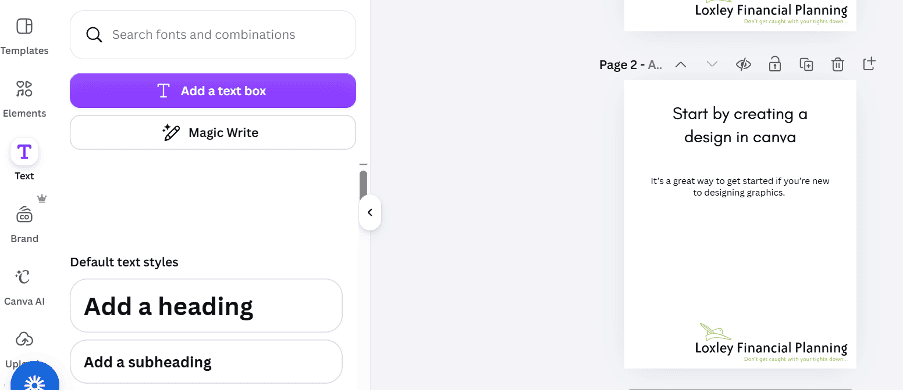
Once you’re happy with this first page, keep on duplicating the page and filling in the text until you’re satisfied with your carousel.
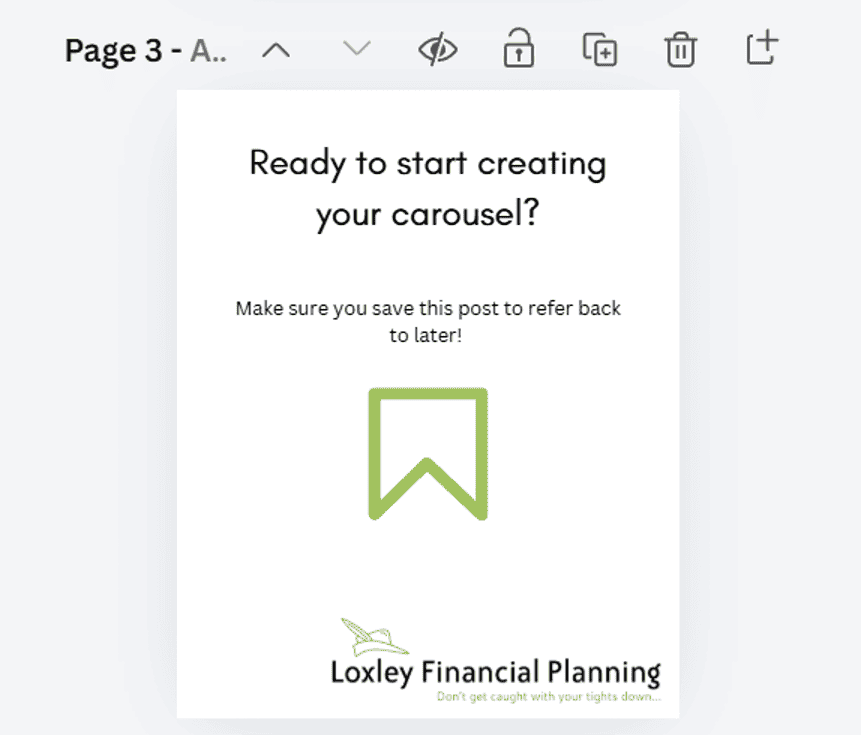
Step 6: At the end of the document, add a final page with a clear call to action to encourage engagement and help your post perform even better.
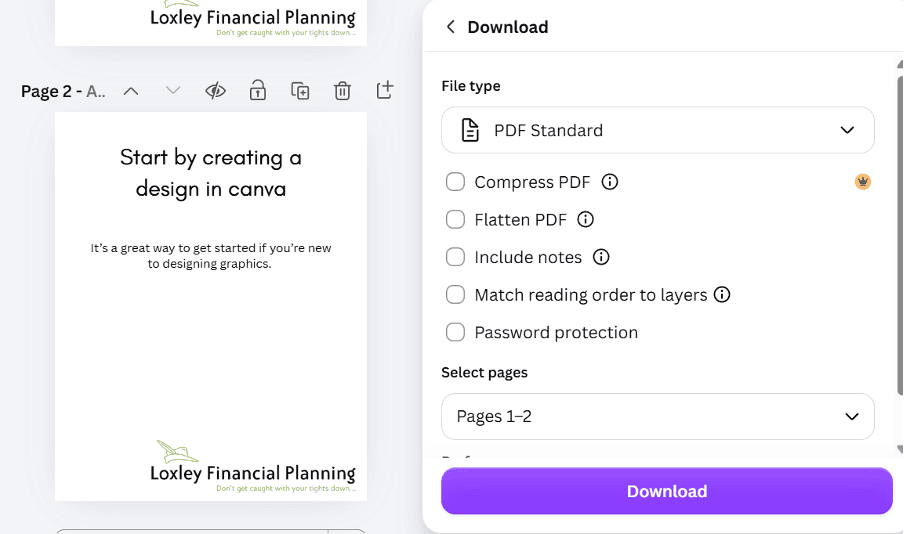
Step 7: Now it’s time to download the document. In the top right-hand corner, click “share”, then scroll down and click “download”. In the drop-down menu, select “PDF Standard” and make sure all the pages you want to include are listed in the “pages” cell. Then, go ahead and click download!
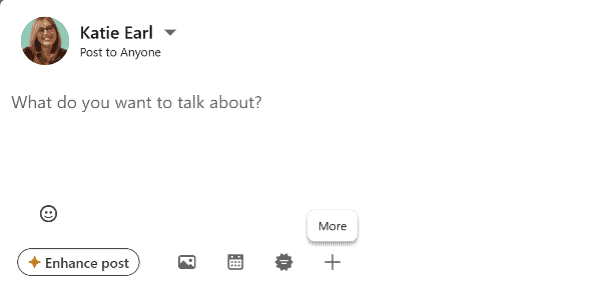
Step 8: To upload your carousel to LinkedIn, start a new post and click the “more” button (the plus sign underneath the text box for your post). Select “Document” and upload your PDF.
Step 9: Once your PDF has been uploaded, you’ll be asked to add a document title. Bear in mind that anyone can download your PDF from your post, and the document title is the file name it will be given when downloaded, so choose something that’s descriptive of the content to make it clear what the file is.
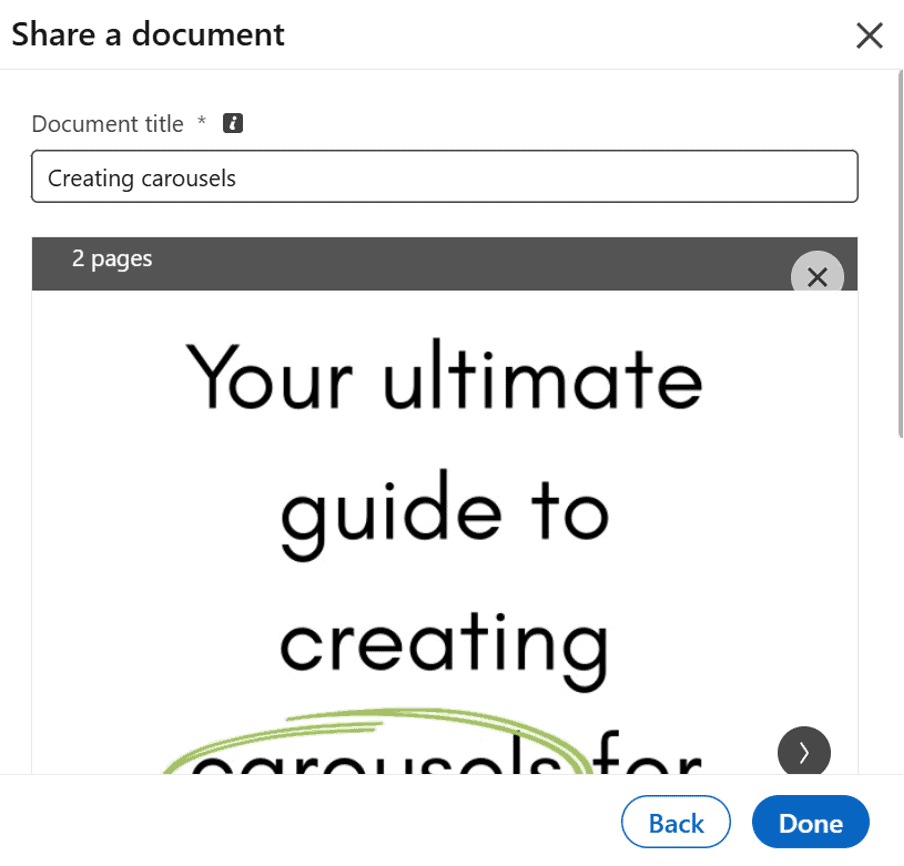
Click “Done”, and the document will be added to your post. You can now write a post to introduce the document – remember to keep it short and sweet, as most of the information you’re sharing is contained in the carousel!
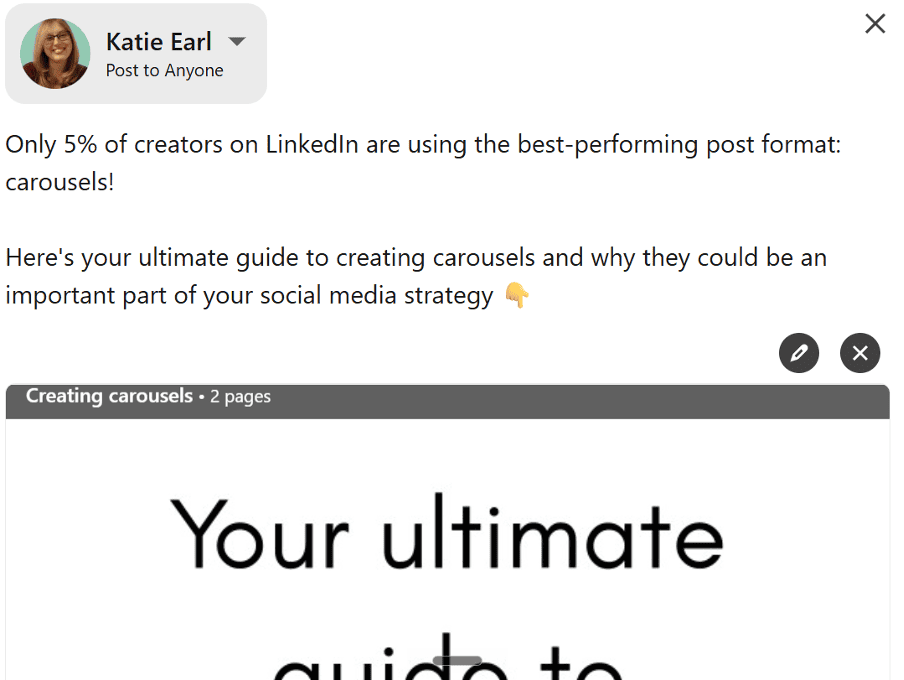
Step 10: Finally, scroll down and click “post”, or “schedule” if you want your carousel to go out at another time.
And there you have it – your very first carousel!
Get in touch
I hope this blog has simplified carousels for you and that you’re raring to go and get started. But I get that not everyone has the time or the inclination to take this on themselves.
If you’re keen to up your game on LinkedIn but want a helping hand, our social media team is here to help. We offer a range of social media management packages to suit your needs. Just get in touch at hi@theyardstickagency.co.uk to start the conversation.